InnerPulse stores everything on your devices, without a cloud of our own. So you can still share, back up or move your data between devices, there are export and import functions. This chapter shows what's possible and when each option makes sense.
When to use what
- CSV for table-based analysis, your own evaluations in Excel or Sheets, or a later re-import. Machine-readable, clearly structured.
- PDF for the next therapy or doctor appointment. Readable, printable, with tables and trend lines.
- ZIP with media when you want to back up or pass on the photos and files of your entries together with the table.
- CSV import when you want to bring back data from an earlier installation or from another app.
CSV export
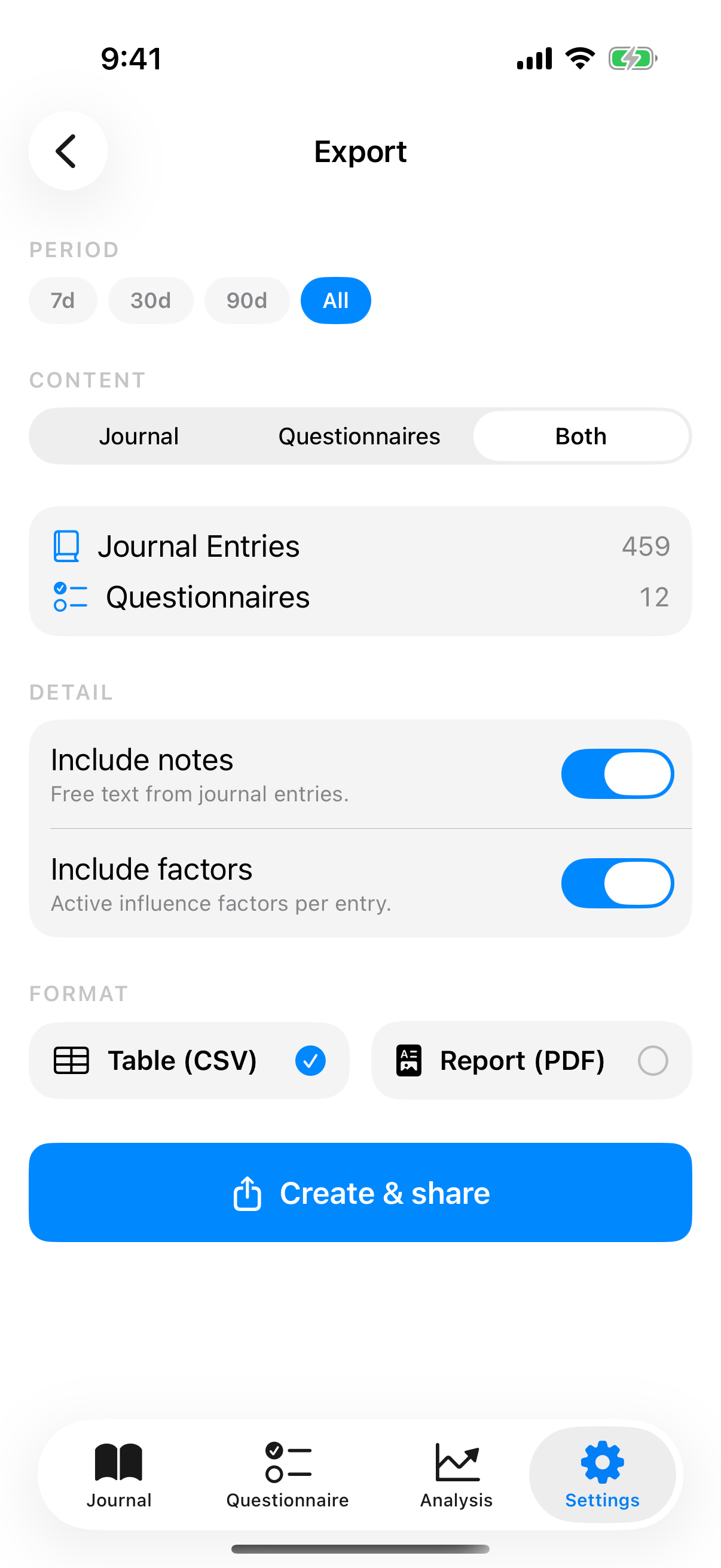
In settings tap Export data. You select in sequence:
- Time range: 7 days, 30 days, 90 days or All. Default is All.
- Content: Journal, questionnaires or both. Default is both.
- Detail: Include notes, Include factors. Default is both on. If your entries in the time range contain photos or files, Include media also appears, on by default as well.
- Format: Table (CSV) and/or Report (PDF). Default is CSV only.
A preview card shows you live how many entries and questionnaires currently fall in the time range. So you avoid empty exports.
What the journal CSV contains
The journal CSV contains per entry:
- Date and time (ISO-8601 format)
- Mood value (1 to 10)
- Factors as a comma-separated list (if Include factors is active)
- Note text (if Include notes is active)
- Feelings as a comma-separated list (if Include factors is active)
- for an export with media, additionally the column Media with the entry's folder
The column headers use the language you set in the app. Special characters are UTF-8 encoded. The file opens in Excel, Numbers, Google Sheets and any CSV-capable tool.
What the questionnaire CSV contains
The questionnaire CSV contains per test:
- Date and time
- Test type (PHQ-9, GAD-7, K10, PHQ-4)
- Total score
- Severity label (for example "Mild", "Moderately severe")
- For completed tests: all individual answers as Item_1 through Item_N
So a therapist or doctor can see not only the total score but also follow the response pattern.
Export with media (ZIP)
If Include media is active, InnerPulse packs everything into one ZIP file: the CSV file or files and a folder Media with one subfolder per entry. Each subfolder carries the date and time of the entry in its name, for example 2026-09-28_2140_ab12cd34. It holds photos and files under their original names, with photos in the downscaled version without location data that InnerPulse saved. The column Media in the journal CSV names the folder of each entry.
Below the switch you see in advance how many files and how much storage the export includes. The switch only works together with the table (CSV). The PDF report contains no photos and files, because it often goes to a doctor or therapist.
iOS file protection locks attachments while your device is locked. If you lock it during a long export, the attachments read after that are missing from the ZIP file. InnerPulse then reports Export Incomplete and names the number of missing attachments.
PDF export
Turn on the PDF toggle to additionally or alternatively generate a PDF. The layout is built for readability:
- Cover page with time range, generation date and summary (min, average, max mood, number of tracking days), plus your most frequent feelings with their count.
- Top factors section with the five most important impact factors including confidence.
- Questionnaire summary per test type with trend line and last score.
- Journal detail as a chronological list, one entry per row with mood, date, feelings, factors and first lines of the note.
The PDF uses a sans-serif font, lots of white space and is printable on A4. It is not optimized for smartphone screenshots, but as a printed template.
Generate and share
Tap Create & share. A progress dialog shows the steps:
- Create the journal and questionnaire CSV (fractions of a second up to a few seconds for very large data sets).
- Pack media, if Include media is active. Depending on the number of photos, this takes longer.
- Compute and render the PDF report (a few seconds).
- Prepare sharing.
Tap Cancel to stop the export at any time. As soon as the files are ready, the iOS share sheet opens. You can email, AirDrop, save to the Files app, store in iCloud Drive or pass to another app.
Data import from CSV
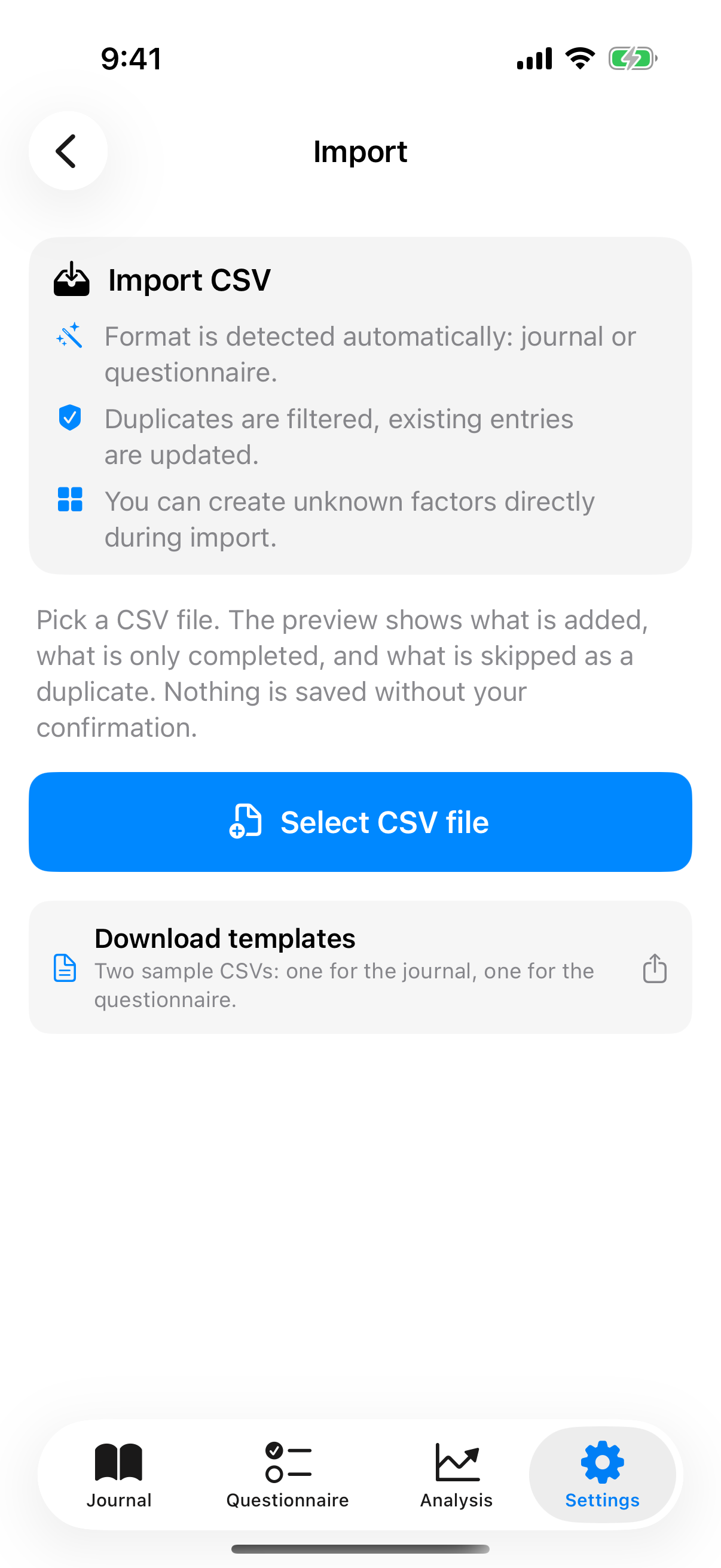
In the privacy center you'll find the Import. Pick a CSV file. The app tries to automatically detect the columns based on the headers. Most InnerPulse-own exports are recognized directly.
For each row, the app checks:
- Format validity: is the date parseable, is the mood value in the range 1 to 10.
- Duplicate: does an entry with the same date and mood value already exist.
- Factor mapping: do the factors exist? If not, they are created as custom factors.
The import also takes over a Feelings column. It leaves out feelings InnerPulse doesn't know and names their number in the preview. You see a preview with the count of new, skipped and erroneous rows. Only then does the app ask for confirmation. On import, synonyms are also resolved: "Jogging" lands for example in the system factor Exercised, if it exists.
Migration to a new iPhone
Three paths, depending on how much iCloud you use:
- iCloud backup activated: When setting up the new device, apps with their data are typically restored, provided they are included in the backup. That's convenient but places an encrypted copy in your iCloud, as described in the chapter Privacy & Security.
- Manual path via export and import: Export as CSV before the switch. Reinstall the app on the new device. Import the CSV in the privacy center. That's full control and works independently of whether an iCloud backup is present. The import doesn't bring over photos and files attached to your entries. They only come along with a device backup, and the ZIP export keeps them as an archive.
- Device sync: Turn on device sync on the old and the new device. Entries, questionnaire results and factors arrive encrypted via iCloud; photos and files up to 25 MB only with Sync photos and files turned on.
If you want to track in parallel on iPhone and iPad, turn on the optional device sync on both. Then trends and correlations use the same entries on both devices. Without sync, each device keeps its own data.
Delete all data
In the privacy center you'll find a red button Delete all data. On tap, a double confirmation question appears because the process is not reversible. What is deleted is described exactly in the chapter Privacy & Security.
If device sync is on, the app also asks Where should the data be deleted? Only on this device turns off device sync here. On all devices also deletes the entries on your other devices. Neither can be undone.
You delete the iCloud copy of device sync under Device sync with Delete iCloud copy. Turning sync off or uninstalling the app doesn't delete it. Deleted entries leave only an encrypted deletion marker without content in iCloud.
If you only want to delete a single entry, swipe it left in the list. If you delete by accident, shake the iPhone within 30 seconds to restore the entry together with its attachments.
What to know
- CSVs, PDFs and the ZIP file with media are unencrypted. Treat them like your medical records.
- When sharing by mail, use end-to-end encrypted channels if possible. Standard IMAP mail is not secure.
- The re-import of your own export CSV works without loss. Date values and factor mappings are correctly restored.
- Imports from other apps (Daylio, Bearable, MoodPath) are theoretically possible but need manual column mapping. See Troubleshooting for hints.
- Duplicates detected during import are skipped, not overwritten. So an accidental double import is safe.